
How to Invite Team Members & Set User Roles
Invite accountants, bookkeepers, and partners to your business in Twin Owls. Four permission roles — admin, accountant, editor, viewer — let you control exactly what each person sees and does.
Published April 2, 2026 · Updated April 15, 2026
You don't have to manage your books alone. Whether it's a CPA who handles your year-end filings, a bookkeeper who posts entries weekly, or a business partner who wants to see the numbers — Twin Owls lets you invite people to your business and control exactly what they can access. No more exporting spreadsheets or emailing PDFs — your team sees live data, and you decide how much of it they can touch.
Roles are scoped per business. The same person can be an admin on your rental property LLC and a viewer on your holding company. You decide who gets in, what they can do, and you can change your mind at any time.
The four roles
Every team member gets one of four roles. Each role is a strict subset of the one above it — admins can do everything accountants can, accountants can do everything editors can, and so on. If you're new to the concepts behind these actions, Accounting basics covers the fundamentals.
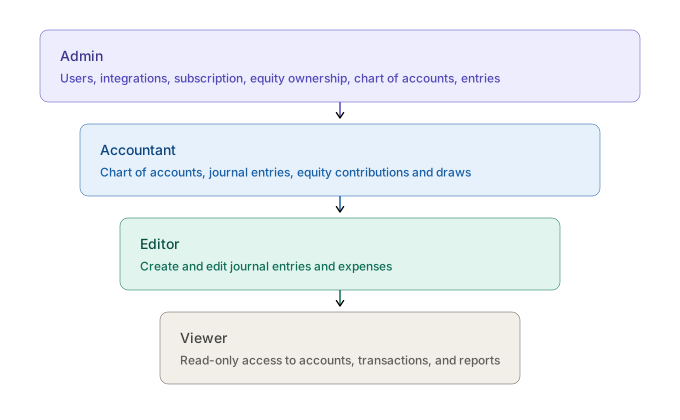
Admin — Full access. Can invite and remove users, change roles, manage integrations and the subscription, edit the chart of accounts, post journal entries, and manage equity ownership. Best for business partners or co-owners.
Accountant — Can edit the chart of accounts, create and edit journal entries, and record equity transactions like contributions and draws (but cannot change ownership percentages — that's admin-only). Cannot manage users, integrations, or the subscription. Best for your CPA or external bookkeeper.
Editor — Can create and edit journal entries and expenses. Cannot modify the chart of accounts or manage the team. Best for a property manager who logs rent and maintenance, or an assistant who enters receipts.
Viewer — Read-only access to accounts, transactions, reports, and documents. Cannot edit anything. Best for a silent investor, a lender who needs visibility, or a partner who reviews the numbers but doesn't do the bookkeeping.
Permission reference
| Action | Admin | Accountant | Editor | Viewer |
|---|---|---|---|---|
| View accounts, entries, and reports | Yes | Yes | Yes | Yes |
| Create and edit journal entries and expenses | Yes | Yes | Yes | — |
| Edit chart of accounts | Yes | Yes | — | — |
| Record equity transactions | Yes | Yes | — | — |
| Invite and remove users | Yes | — | — | — |
| Change user roles | Yes | — | — | — |
| Manage integrations | Yes | — | — | — |
| Manage subscription | Yes | — | — | — |
| Manage equity ownership | Yes | — | — | — |
A note on "Owner"
The person who creates a business is its owner. The owner always has admin-level permissions regardless of any role assignment, and the UI displays "Owner" instead of a role label on the members table. Ownership can't be transferred through the app — the original creator remains the owner.
How to invite someone
Only admins and the business owner can send invitations. Here's the step-by-step:
- Open User Access from the sidebar.
- Click Invite User in the top-right corner.
- Enter the person's email address.
- Choose a role. The dialog shows a card for each role with a short description of what it includes — pick the minimum level of access the person needs.
- Click Send Invitation.
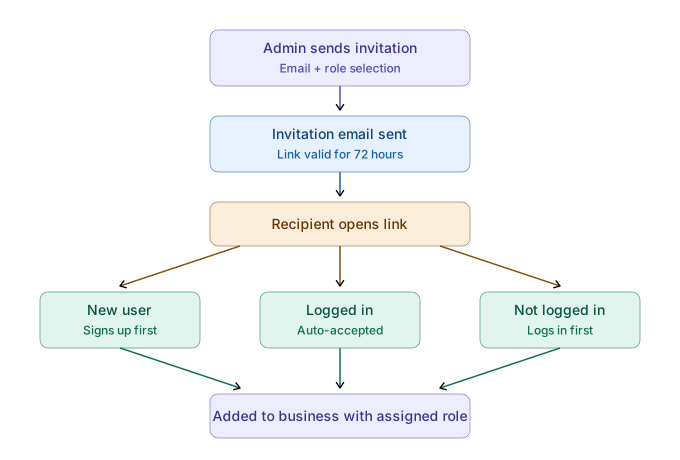
After you send the invitation, the person receives an email with a link to accept. The dialog also shows a shareable link you can copy and send manually — useful if the email doesn't arrive or you'd rather share the link over text or Slack. Invitations expire after 72 hours; you can always send a new one from the User Access page if the window passes.
The invitation also appears in the Pending Invitations section on the User Access page, where you can cancel it if you change your mind before the person accepts.
Note: You can't send an invitation to someone who already has a pending invitation or is already a member of the business. Cancel the existing invitation first, or check the members list.
Note: Some subscription plans limit the number of users per business. If you've hit the limit, the Invite User button will be disabled and a banner will explain the constraint. You can upgrade your plan to add more seats.
What the invited person sees
When someone opens your invitation link, their experience depends on whether they already have a Twin Owls account.
If they don't have an account, they'll see a page that says "You've been invited to [Your Business Name]." From there they can sign up with email and password, Google, or a passkey. The invitation is accepted automatically when they complete signup — no extra steps.
If they already have an account and are logged in, the invitation is accepted immediately. They're redirected to the dashboard with your business selected in the entity switcher.
If they have an account but aren't logged in, they'll see the invitation page with a link to log in. After logging in, the invitation is accepted and they land on the dashboard.
If the invitation expired or was cancelled, the page shows a clear message explaining what happened. Invitations are valid for 72 hours. You can always send a new one from the User Access page.
If email verification is required, the invitee verifies their email first and then the acceptance flow picks up automatically. They don't lose the invitation.
Managing your team
Once people have joined, the User Access page becomes your team management hub. Summary stats at the top show total members, active members, pending invitations, and inactive members at a glance.
Changing roles and access:
- Change a member's role by selecting a new role from the dropdown on their row. A confirmation dialog makes sure the change is intentional. You can promote an editor to accountant when they take on more responsibility, or dial someone back to viewer if their needs change. The one exception: you can't change the owner's role.
- Search and filter to find people quickly. Use the search bar to find members by name or email, and the status tabs (All, Active, Inactive, Pending) to narrow the list.
Revoking access:
- Deactivate a member to revoke access temporarily. Useful for seasonal contractors, someone on leave, or a bookkeeper between engagement periods. Their user record stays in the system, and you can reactivate them later with one click — no need to re-invite.
- Remove a member permanently when someone is no longer part of the business. Their access is revoked immediately, but journal entries and other records they created remain in your books. You're removing the person, not their work.
- Cancel a pending invitation if you sent one by mistake or changed your mind. The link becomes invalid immediately.
Common setups
Here are three patterns that cover most small businesses and investment entities:
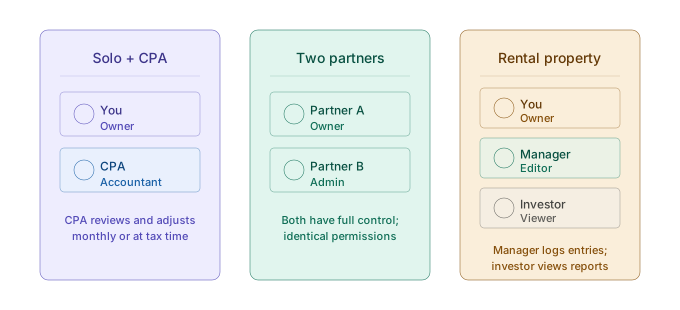
Solo owner + external CPA
You run the day-to-day. Your accountant logs in monthly or quarterly to review entries, adjust the chart of accounts, and prepare reports for tax filing. Give them the accountant role — full access to financial data without being able to change your subscription, manage integrations, or invite other users.
Two business partners
Both partners need full control. Make both admin. The person who created the entity will show as "Owner" in the UI, but both admins have identical permissions. Either can invite additional team members, manage integrations, or change the subscription.
Property manager + investor
Your property manager handles tenant payments, maintenance invoices, and utility bills. Give them the editor role so they can create and edit journal entries. An investor or lender who wants visibility into the financials gets the viewer role — read-only access to accounts, transactions, and reports without risk of accidental edits. You keep control of the chart of accounts, reports, and team management as the owner.
If you manage several LLCs or businesses, remember that roles are assigned per entity. Your CPA might have the accountant role on all three of your rental property LLCs, while your property manager has the editor role on only the two properties they manage. Each invitation is independent — changing someone's role on one entity doesn't affect their access to another. For more on per-entity structure, see Multi-entity accounting for investors.
Tips for choosing the right role
When in doubt, start with the lowest access level that lets someone do their job — you can always promote later. A few rules of thumb:
- External CPAs and bookkeepers → Accountant. They need chart of accounts and journal entry access but shouldn't touch integrations or billing.
- Property managers or assistants → Editor. They log transactions but shouldn't restructure your accounts.
- Investors, lenders, or silent partners → Viewer. Full visibility, zero risk of accidental edits.
- Co-owners who share operational responsibility → Admin. Identical permissions to the owner.
If someone's needs change, you can update their role from the User Access page at any time — no need to remove and re-invite them.
Frequently asked questions
Is there a limit on team members?
It depends on your subscription plan. The User Access page shows your current member count and any limits. If you've hit the cap, upgrade your plan to add more seats.
Can I transfer ownership of a business?
Not through the UI currently. The person who created the business remains the owner. You can give someone else the admin role, which grants the same permissions — but the Owner label stays with the original creator.
Do I need to use all four roles?
No. If it's just you, you don't need to invite anyone. If it's you and a CPA, you only need the accountant role. The four roles exist so you can be precise about access when your team grows.
How long do invitations last?
Invitations expire after 72 hours. If someone doesn't accept in time, send a new invitation from the User Access page.
What if I invite someone who already has a Twin Owls account?
They'll see the invitation page with a prompt to log in. Once they do, the invitation is accepted automatically — no signup required.
Can I re-invite someone I previously removed?
Yes. Removing a member deletes their access but doesn't block future invitations. Send a new invitation and they'll go through the normal acceptance flow.
Can I see what a team member changed?
Yes. Every journal entry and transaction records who created or last edited it. You can filter by user in the transaction list to review a specific member's work.
Related
- Multi-entity accounting for investors — per-entity structure and the entity switcher
- Chart of accounts setup — the accounts your team will work with
- Journal entries explained — what editors and accountants will be creating
This article is intended for informational purposes only and does not constitute financial or accounting advice. Consult a qualified accountant or CPA for guidance specific to your situation.
Try it in Twin Owls
See this in action in the app. Open in app