Understanding Your Chart of Accounts
Add accounts in Twin Owls, pick account codes that match your reports, and use subaccounts without breaking your books.
Published March 15, 2026 · Updated April 10, 2026
Your chart of accounts is the list of categories every transaction is sorted into. This guide explains how to add accounts in the app, how to choose an account code so your profit and loss report stays sensible, and how subaccounts work.
For types and default numbering, start with Setting up your chart of accounts.
Where to add an account
- Open Accounts in the sidebar (or open the Accounts page directly).
- Select the entity you want if you manage more than one.
- Click Add Account to open the form.
If you have permission to add accounts, press n on the Accounts page to open Add Account quickly.
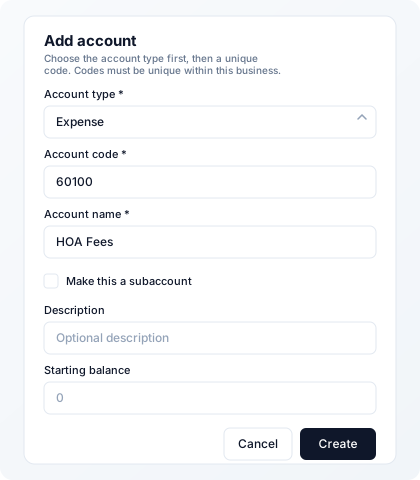
What you fill in
| Field | What it means |
|---|---|
| Account type | Asset, Liability, Equity, Income, or Expense — must match what you’re tracking. |
| Account code | Short label to find the account (often numeric). Must be unique within that business. |
| Account name | Human-readable name (e.g. “HOA Fees”). |
| Subaccount | Optional. Nests this row under a parent of the same type (see Subaccounts). |
| Description | Optional notes. |
| Starting balance | Opening balance when you begin using this account in Twin Owls. |
Twin Owls does not force a specific code format, but reports use numeric codes to group lines on the profit and loss statement. Letters-only codes fall back to simple P&L grouping — five-digit numbers are strongly recommended.
Choosing an account code
Match the first digit to the account type
| First digit | Account type | Examples |
|---|---|---|
| 1 | Asset | Cash, bank, receivables |
| 2 | Liability | Payables, payroll owed, cards |
| 3 | Equity | Owner equity, retained earnings |
| 4 | Income | Sales, other income |
| 5 | Expense (COGS) | Direct cost of goods sold |
| 6–7 | Expense (operating & other) | Rent, software, interest, etc. |
How code ranges appear on the P&L
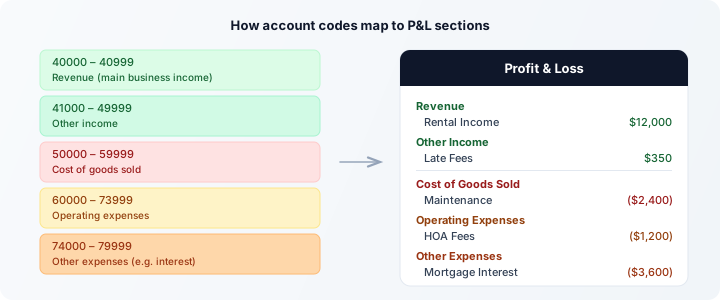
For income and expense accounts, the profit and loss report groups rows using these bands:
| Code range | P&L section |
|---|---|
| 40000–40999 | Revenue (main business income) |
| 41000–49999 | Other income |
| 50000–59999 | Cost of goods sold |
| 60000–73999 | Operating expenses |
| 74000–79999 | Other expenses (e.g. interest in that range) |
Practical tips
- Put new operating expenses in 60000–73999 so they stay with other day-to-day costs.
- Use 74000–79999 for lines you want below that block on the P&L (such as interest), if your accountant agrees.
- Use 41000–49999 for income that isn’t your main “revenue” line if you want it under Other income on the report.
Common mistakes
- Wrong first digit for the type — e.g. code starting with
6but type Income: the account may appear in the wrong report section. - Duplicate codes — the app rejects a second account with the same code.
- Very high or odd numbers — still allowed, but may land in an "Other" section on the P&L instead of a specific group.
Subaccounts
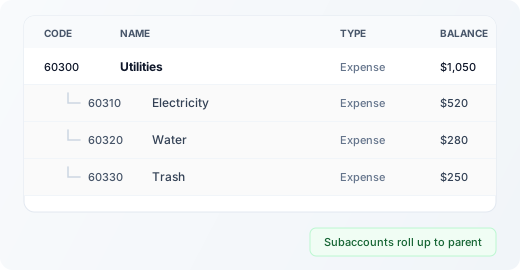
A subaccount is a more specific line that rolls up under a parent account of the same account type.
- Create at least one top-level account of that type first (or use one from the default chart).
- Open Add Account again, enter code and name, and choose the same account type as the parent.
- Turn on Make this a subaccount and choose the parent from the list.
Subaccounts appear nested under the parent on the Accounts page. You cannot pick a parent with a different type than the child.
Note: If an account already has transactions, you may not be able to change its type or parent — add a new account and migrate activity with your accountant if needed.
Related
- Setting up your chart of accounts — account types and default numbering
- Accounting basics — how double-entry fits together
Try it in Twin Owls
See this in action in the app. Open in app